

WhatsApp Messenger is a piece of free software which supplies cross-platform instant messaging service for smartphones. With this application, you can make voice calls; send text messages, pictures, documents, and more to other users who are using the standard cellular mobile numbers. Perhaps, you delete some WhatsApp messages by mistake one day, and you want to get them back. Now, we write this article which focuses on Android WhatsApp to tell you how to recover deleted WhatsApp messages on Android as well as some other useful information.
As a matter of fact, there are two different cases of Android WhatsApp message recovery:
1: If you have never backed up your WhatsApp messages, what should you do to recover your deleted WhatsApp messages?
- If you have made a backup of your WhatsApp messages, how to restore WhatsApp backup?
How to Get Deleted WhatsApp Messages back without Backup
As to WhatsApp data recovery Android without backup, you should try a piece of dedicated Android data recovery software. MiniTool Mobile Recovery for Android is a good option.
This software is specially designed to retrieve Android data from Android phone & tablet and SD card. With this tool, you can get various kinds of Android data back, such as text messages, photos, contacts, WhatsApp messages & documents, and more. Thus, this software can fully meet your need to recover deleted WhatsApp messages on Android.
With the Free Edition of this software, you can restore 10 pieces of WhatsApp messages each time. So, we suggest using this freeware to have a try firstly. Here, you should know that this software can be run on Windows 10/8.1/8/7.
After downloading and installing this software on your computer, please open it to enter its main interface as follows. Here, you can see that this software has two recovery modules, and they are “Recover from Phone” which is used to recover data from Android internal storage space and “Recover from SD-Card” which is designed to retrieve data from your Android SD card. In general, your WhatsApp messages are stored on your Android device internal storage space. So, you should use its “Recover from Phone” module in this case.
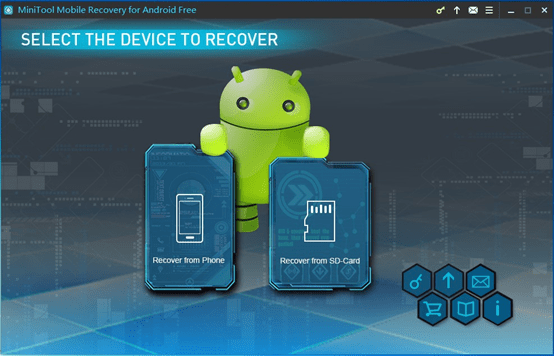 Step 1: Click the software icon to open it and enter its main interface. Then select “Recover from Phone” module to continue.
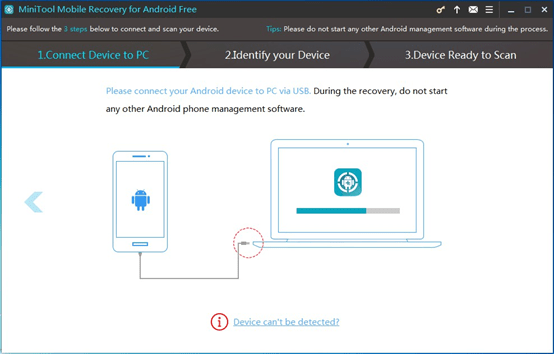
Step 2: This software will inform you to connect your Android device to your computer. Please just do it and then the software will begin to analyze your Android device automatically.
 Step 3: If you have not enabled USB debugging on your Android device, you will enter the following interface. If you don’t know how to enable USB debugging, don’t worry. This software shows you the detailed steps for different Android version. You just need to select the corresponding Android version from this interface and then do as the guide tells you.
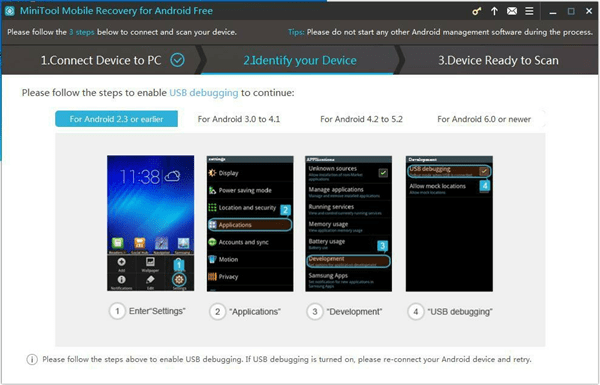 If you have enabled USB debugging on your Android phone before, you will skip this step to enter the next step directly.
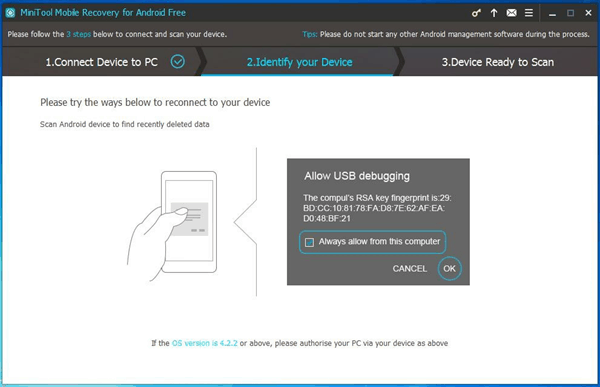
Step 4: If it is the first time for you to connect the Android device to the computer you are using, you will see this interface as follows. Here, you need to tap “OK” option on your Android device to give your computer the authorization. At the same time, we recommend you to check “Always allow from this computer” option on your Android device. Then, you will not have to repeat this step when you connect your Android device to this computer next time.
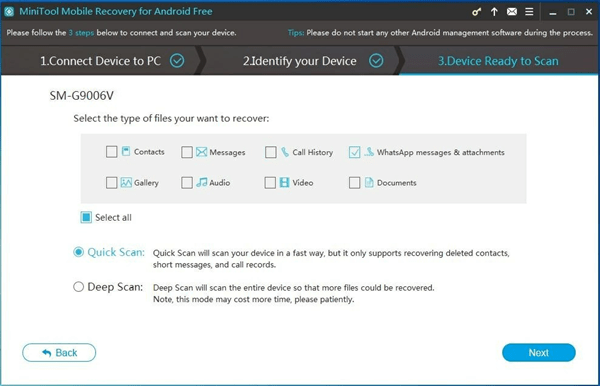
 Step 5: In this step, you will see the “Device Ready to Scan” interface which shows you the data types this software can recover and two scan methods: “Quick Scan” and “Deep Scan“.
Since you only want to recover the deleted WhatsApp messages on Android, “Quick Scan” method can fully meet your demand. Just check this scan method and you will discover that “Contacts“, “Messages“, “Call History” and “WhatsApp messages & attachments” are checked by default. Here, you can uncheck the three unnecessary data types manually and then click on “Next” button to continue.
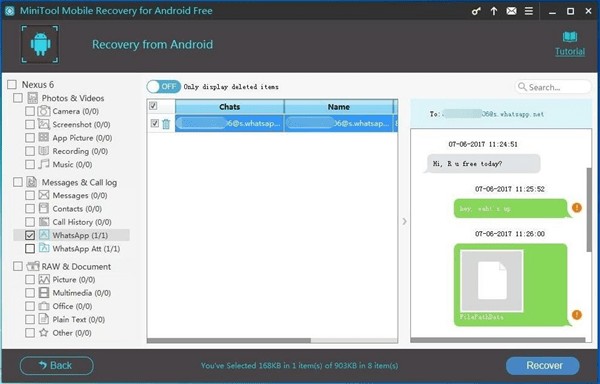
 Step 6: You will enter the scan result interface as follows when the scan process is finished. In this interface, you can see that the data type list is on the left side with “WhatsApp” and “WhatsApp Att” icons in light blue. Please click on these two icons to make the software show you the WhatsApp messages & attachments. Then, you can view these items one by one and choose the ones you want to recover. After that, you should click on “Recover” button to continue.
 Step 7: There will be a pop-out window which allows you to save the selected items to the software default storage path. Of course, you can also click on “Browse” button to choose another location on your computer to save these files.
When all of these steps are finished, the selected WhatsApp messages will be saved to the specified path on your computer, and you will be able to view them directly.


